

Harmony in projects,
Harmony in cooperation
We are Easy Software, the global software company that helps people in 3,500+ companies from 80 countries around the world to bring harmony to every project.
We stand behind Easy Redmine and Easy Project
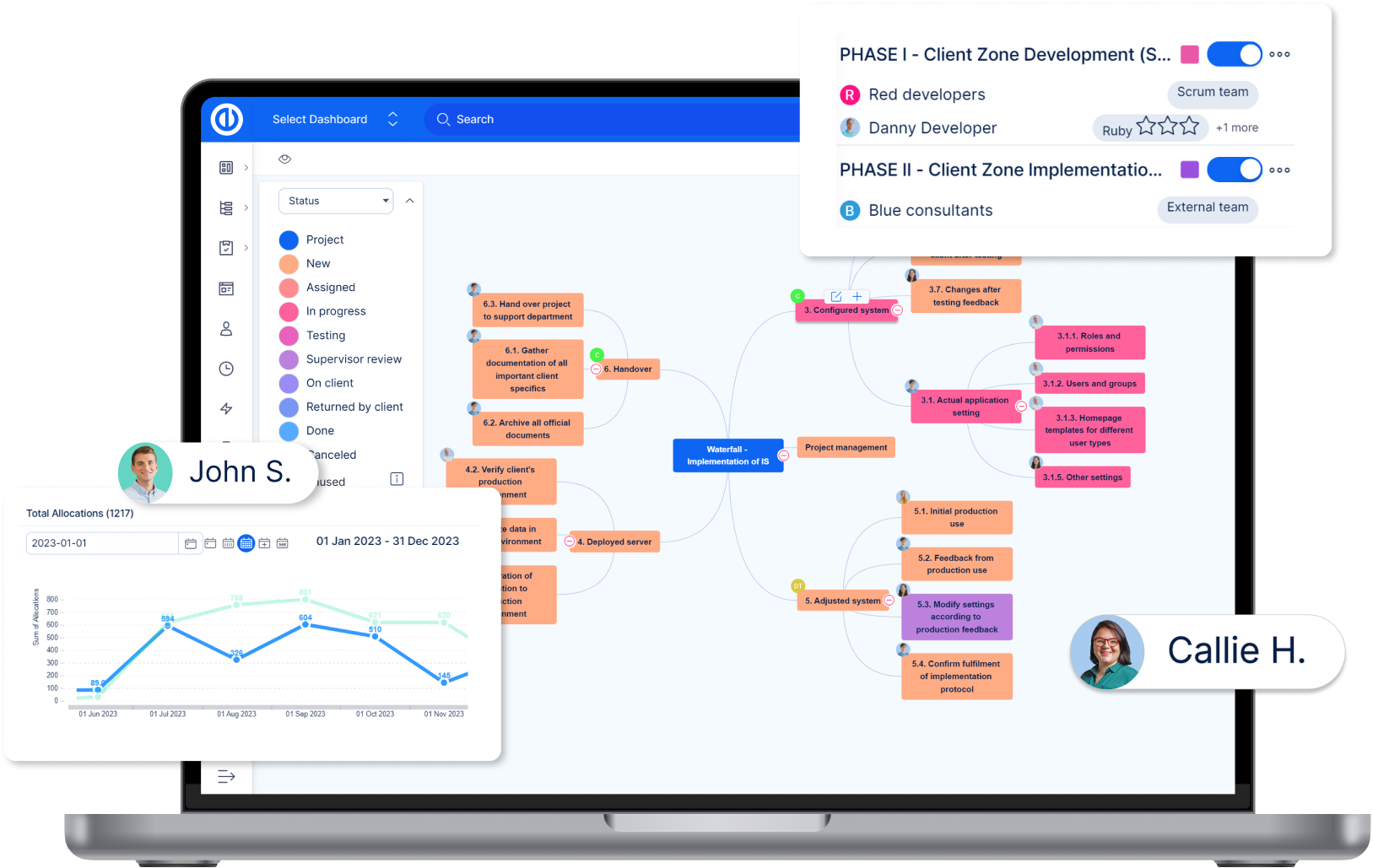

No.1 Redmine platform to scale up the business to the next level.
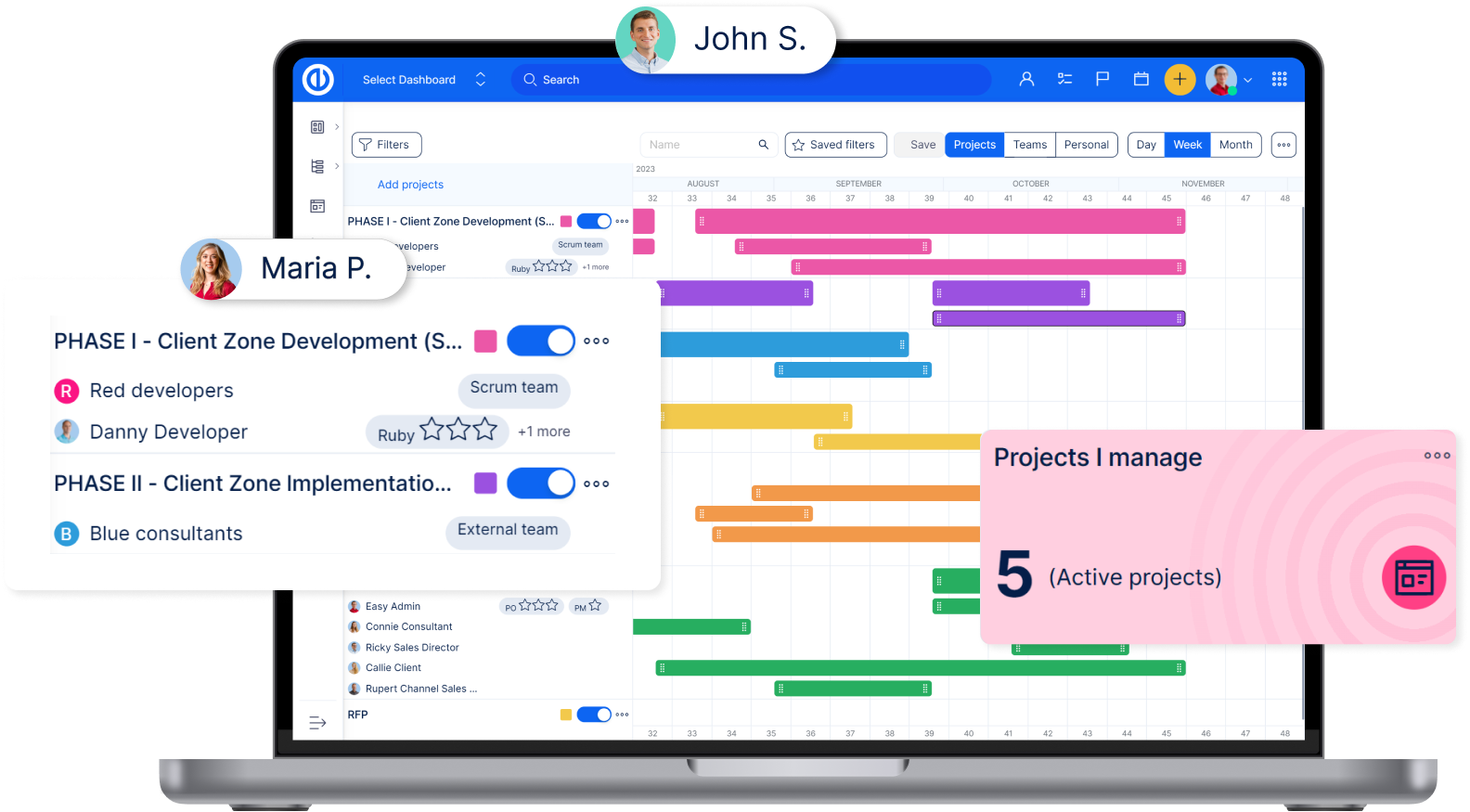

Project management software adapted to your needs.
Trusted worldwide







Our mission
We create software that brings harmony to every project and makes human cooperation easier. Software that adapts to the unique needs of every user. Software that takes project management to the next level. Software that helps people to be successful.

A team dedicated to success
Based in Prague, we are a team of dedicated professionals who strive to deliver the best project management solutions to millions of happy users all over the globe.
As a self-funded company, where owners have hands-on, we not only work together, we live together. We are the Easy company.

Join our team
Become a member of an international team and participate in the development, sales, customer success, or marketing. We aim to create the most adaptable project management tool in the world, currently trusted by more than 3,500 clients, including Bosch, Ogilvy, Continental, and more.
But Easy Software is not only about project management. Easy is also a culture inspired by harmony. We are still growing, but most of all we are improving ourselves and the software we make.
All you have to do is ask yourself - do you want to be a part of this story?
Contact us
Phone
UK: +44 203 129 0618
US: +1 917 831 1777
PL: +48 732 081 632
BR: +55 114 230 0544
CZ: +420 222 980 481
SK: +421 907 221 298
HU: +36 70 943 2325
Easy Software s.r.o. (CZ)
Jugoslávských partyzánů 34
160 00 Prague
Czech Republic
Company Reg. No.: 26426269
VAT No.: CZ26426269
Bank details
Raiffeisenbank, a.s.
Account number: 375842028/5500
IBAN: CZ06 5500 0000 0003 7584 2028
SWIFT: RZBCCZPP
Easy Software Ltd. (UK)
Kemp House, 152-160 City Road
EC1V 2NX London
United Kingdom
Company Reg. No.: 08960980
VAT No.: GB226711521
Bank details
Citfin, spořitelní družstvo
Account number: 1109913/2060
IBAN: CZ0320600000000001109913
SWIFT: CITFCZPPXXX
Easy Software LLC (US)
175 Pearl St. Floors 1-3
Brooklyn, NY 11201
United States of America
Bank details
Bank of America
Account number: 4830 9521 2297
Routing number: 026009593
SWIFT: BOFAUS3N